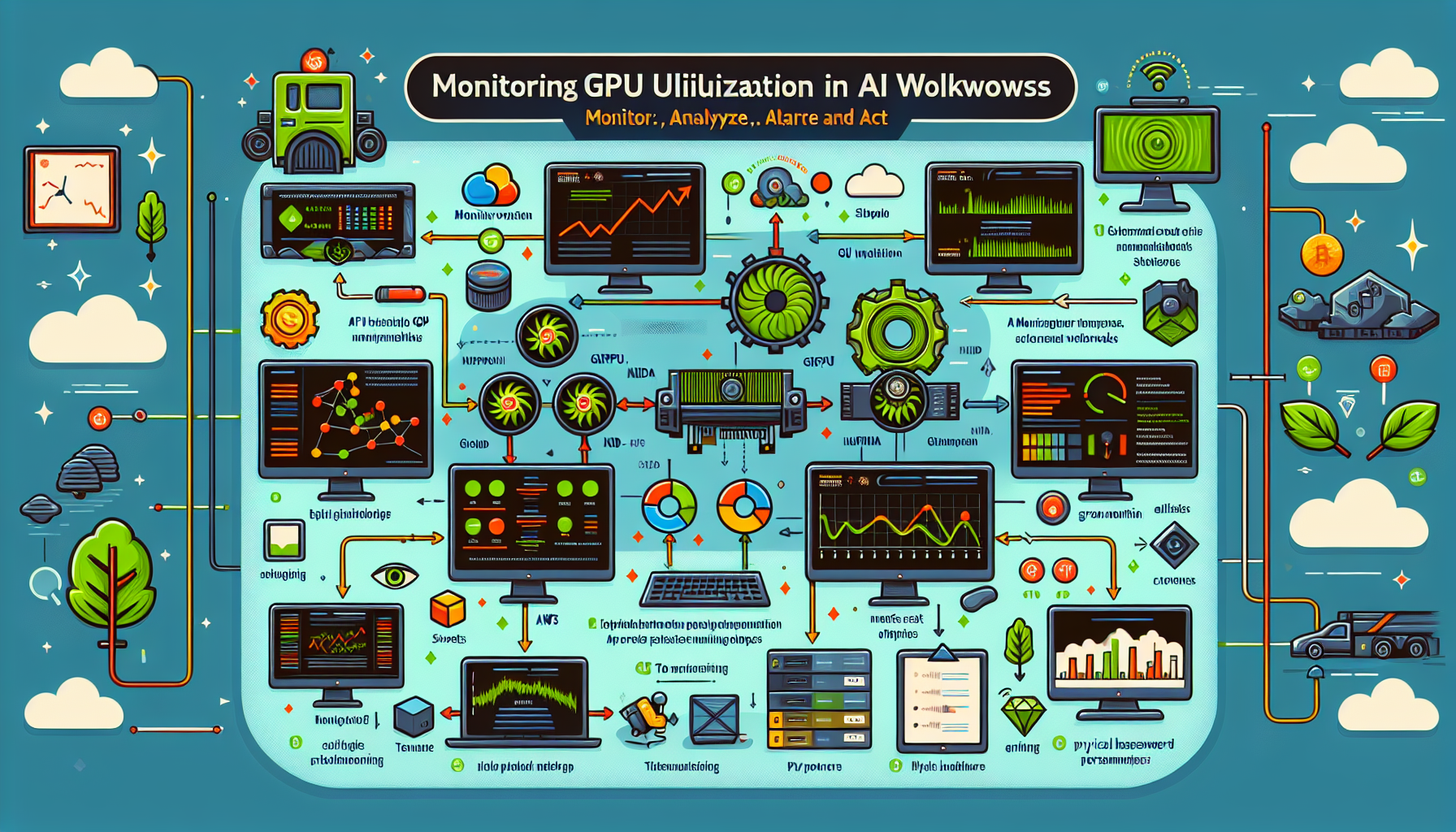
Monitoring GPU utilization in AI workloads is critical for understanding performance, optimizing resource usage, and troubleshooting bottlenecks.
1. Use GPU vendor tools
Each vendor provides CLI utilities that ship with their drivers. Start here before adding extra layers.
NVIDIA GPUs
nvidia-smi: The standard command-line interface. Run nvidia-smi for a snapshot, or nvidia-smi dmon for a streaming view. Output covers GPU utilization (%), memory used/total, power draw, temperature, and process list.
DCGM (Data Center GPU Manager): Built for fleet-level monitoring. Exposes metrics via API and integrates with Prometheus through the DCGM Exporter. Use this when you need historical data, health checks, or policy-based alerts across multiple nodes.
AMD GPUs
rocm-smi: The ROCm System Management Interface. Ships with the ROCm stack and reports utilization, memory, temperature, clock speeds, and partition info. Run rocm-smi for a snapshot or rocm-smi -a for all metrics.
radeon-profile: A GUI/daemon for desktop and workstation cards. Less common in headless server environments.
Intel GPUs
intel_gpu_top: Real-time engine utilization, memory bandwidth, and frequency for discrete and integrated GPUs. Part of the intel-gpu-tools package.
Intel GPU Telemetry: Library and daemon for programmatic access to metrics, useful for custom collectors.
2. Integrate with infrastructure monitoring
Push GPU metrics into your existing observability stack so they sit alongside CPU, memory, and network data.
Prometheus + Grafana
Deploy the DCGM Exporter (NVIDIA) or rocm-smi exporter (AMD) as a DaemonSet or sidecar.
Scrape with Prometheus, then build Grafana dashboards for utilization trends, memory pressure, and thermal headroom.
Kubernetes
GPU metrics don’t appear in metrics-server by default. You have two main paths:
NVIDIA GPU Operator: Installs the device plugin, DCGM, and monitoring stack in one go. Best for NVIDIA-only clusters.
Device plugin + custom exporter: For mixed-vendor or minimal setups, run the vendor device plugin (NVIDIA, AMD, or Intel) and a Prometheus exporter that queries the plugin’s gRPC endpoint.
3. Instrument inside AI frameworks
Framework-level APIs let you correlate utilization with specific training steps, data loading, or model operations.
PyTorch
import torch

# Current allocation
print(torch.cuda.memory_allocated())
# Cached/reserved by the allocator
print(torch.cuda.memory_reserved())
# Peak since last reset
print(torch.cuda.max_memory_allocated())

# Per-device summary (PyTorch 2.0+)
print(torch.cuda.memory_summary())
TensorFlow
import tensorflow as tf

# List physical GPUs
print(tf.config.list_physical_devices('GPU'))

# Profiling (TF 2.x)
tf.profiler.experimental.start('logdir')
# ... run training step ...
tf.profiler.experimental.stop()
# Analyze with TensorBoard: tensorboard --logdir logdir
Quick checks in notebooks
GPUtil is a third-party package (pip install gputil), not built into Jupyter. Handy for ad-hoc checks:
import GPUtil
GPUtil.showUtilization()
4. Cloud provider monitoring
AWS: CloudWatch collects GPU metrics (utilization, memory, temperature) from EC2 instances with the CloudWatch agent or NVIDIA DCGM integration.
Azure: Azure Monitor pulls GPU counters from VMs and AKS nodes via the Azure Monitor agent or Prometheus managed service.
Google Cloud: Cloud Monitoring (formerly Stackdriver) surfaces GPU metrics for Compute Engine and GKE when you enable the GPU monitoring agent.
5. Alert on thresholds that matter
Don’t alert on everything. Focus on conditions that require action:
GPU utilization > 90% sustained for 10+ minutes (possible undersizing or stuck job)
Memory usage > 95% (OOM risk)
Temperature > 85°C (check cooling, throttle risk)
Power draw near TDP limit (throttling likely)
DCGM health watch errors (ECC, NVLink, PCIe replay counters)
Encode these as PrometheusRule objects or cloud provider alert policies with appropriate notification routes.
6. Physical hardware checks
Verify inlet/outlet temperatures with IPMI or BMC; GPU temps alone don’t tell you if the room is overheating.
Apply firmware/driver updates on a schedule. NVIDIA, AMD, and Intel all release fixes that improve reporting accuracy and thermal behavior.
Confirm power cables are seated and PSU redundancy is healthy; a single failed feed can throttle an entire node.
7. Act on the data
If one GPU runs hot while others idle, check your workload distribution. Use torch.nn.DataParallel, DistributedDataParallel, or framework-native sharding to spread load.
Batch size and precision (FP32 vs FP16/BF16) directly affect memory pressure and tensor core utilization. Profile before you assume.
In Kubernetes, use the device plugin’s resource requests/limits and consider the nvidia.com/gpu resource with a scheduler extender or the GPU Operator’s time-slicing for fractional sharing.
8. Deeper profiling when needed
Nsight Systems / Nsight Compute (NVIDIA): System-wide timeline and kernel-level analysis. Essential for finding kernel launch gaps, memory throughput ceilings, or synchronization stalls.
ROCm Profiler / Omniperf (AMD): Equivalent stack for AMD hardware.
Intel VTune: CPU+GPU correlation, useful for hybrid workloads.
Datadog, Dynatrace, New Relic: SaaS observability platforms that ingest DCGM/rocm-smi metrics and correlate with APM traces. Worth it if you already pay for them; otherwise Prometheus/Grafana covers the same ground.
Ali YAZICI is a Senior IT Infrastructure Manager with 15+ years of enterprise experience. While a recognized expert in datacenter architecture, multi-cloud environments, storage, and advanced data protection and Commvault automation , his current focus is on next-generation datacenter technologies, including NVIDIA GPU architecture, high-performance server virtualization, and implementing AI-driven tools. He shares his practical, hands-on experience and combination of his personal field notes and “Expert-Driven AI.” he use AI tools as an assistant to structure drafts, which he then heavily edit, fact-check, and infuse with my own practical experience, original screenshots , and “in-the-trenches” insights that only a human expert can provide.