How do I secure shared folders in IT infrastructure?

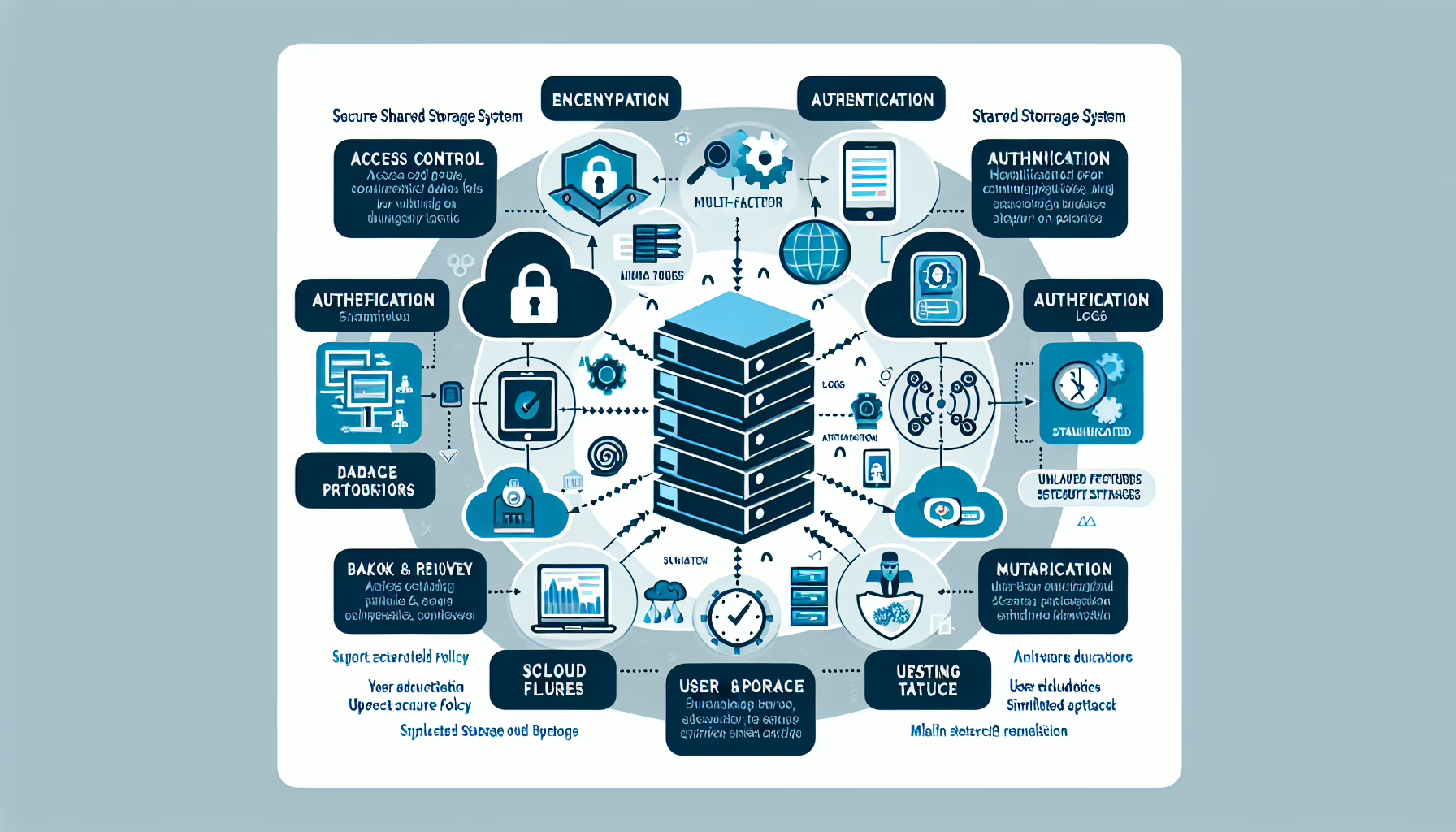
Securing shared folders means controlling who can reach them, what they can do, and how the data moves and sits on disk. You’ll need to combine permissions, network restrictions, encryption, logging, and backups. The steps below cover each layer.


1. Plan and Organize Access Control

  • Map out who needs access and why before you create any share.
  • Apply least privilege: give each group only the permissions it requires, nothing more.
  • Use groups (HR, Finance, IT) to assign permissions, not individual accounts.

2. Secure File Permissions

  • On Windows, set NTFS permissions per group—read, write, modify, full control—as needed.
  • Use ACLs to explicitly allow or deny access for users and service accounts.
  • Never leave “Everyone” or “Anonymous” on a share; remove them unless you have a documented reason.

3. Implement Network Security

  • Use SMBv3 (Windows) or NFSv4 with Kerberos (Linux) for encrypted, authenticated traffic.
  • Restrict share access to known subnets or IP ranges at the firewall or share level.
  • Block unused file-sharing ports (445, 2049, etc.) everywhere they aren’t needed.

4. Use Authentication and Authorization

  • Join file servers to Active Directory so authentication and group membership are centralized.
  • For sensitive data, enforce MFA at the VPN or remote-access gateway before users reach the share; SMB/NFS themselves don’t do MFA.
  • RBAC is just group-based permissions done consistently—see section 1.

5. Data Encryption

  • Enable SMB encryption (SMBv3) or NFSv4 Kerberos privacy for traffic; don’t rely on SSL/TLS for file shares.
  • Encrypt the underlying volumes: BitLocker on Windows, LUKS on Linux.
  • If you use a NAS/SAN, enable its native volume encryption.

6. Monitor and Audit Activity

  • Turn on audit logging for file access (success and failure) and object changes.
  • Ship logs to a SIEM or central log store; review them weekly.
  • Alert on patterns: multiple failed opens, bulk deletions, permission changes.

7. Backup and Recovery

  • Back up shares on a schedule that matches your RPO; test restores quarterly.
  • Lock down backup storage with separate credentials and network segmentation.
  • Enable shadow copies (Windows) or snapshots (Linux/NAS) for quick file-level recovery.

8. Protect Against Malware and Ransomware

  • Run AV/EDR on every client that mounts the share.
  • Use immutable backup targets (object lock, WORM) so ransomware can’t encrypt your recovery copies.
  • Block execution from shares via AppLocker, Software Restriction Policies, or mount options (noexec on Linux).

9. Educate Users

  • Teach users why least privilege matters and how to handle sensitive files.
  • Enforce password policy and MFA at the identity provider, not just by asking.
  • Make reporting easy: a mailbox or chat channel that’s monitored.

10. Regular Security Reviews

  • Quarterly: verify group memberships, share permissions, and audit log retention.
  • Patch file servers and clients monthly; watch for SMB/NFS CVEs.
  • Run an annual pen test that includes share enumeration and privilege escalation attempts.

Tools and Technologies to Secure Shared Folders:

  • Windows File Server: manage permissions and audit policies via GPO.
  • Linux File Server: combine POSIX ACLs, SELinux/AppArmor, and NFSv4 exports.
  • NAS/SAN: use the array’s built-in RBAC, encryption, and snapshot features.
  • Backup: Veeam, Veritas, Commvault, or similar—configure immutable repositories.
  • Monitoring: forward logs to Splunk, SolarWinds, or your SIEM for correlation.

Liked this briefing? Get it in your inbox

Every morning: the stories that make tech leaders act, with official clips and primary sources. Free, 5-minute read.

Free. One click to unsubscribe. We never share your email. Privacy

How do I secure shared folders in IT infrastructure?

Leave a Reply

Your email address will not be published. Required fields are marked *

This site uses Akismet to reduce spam. Learn how your comment data is processed.

Scroll to top