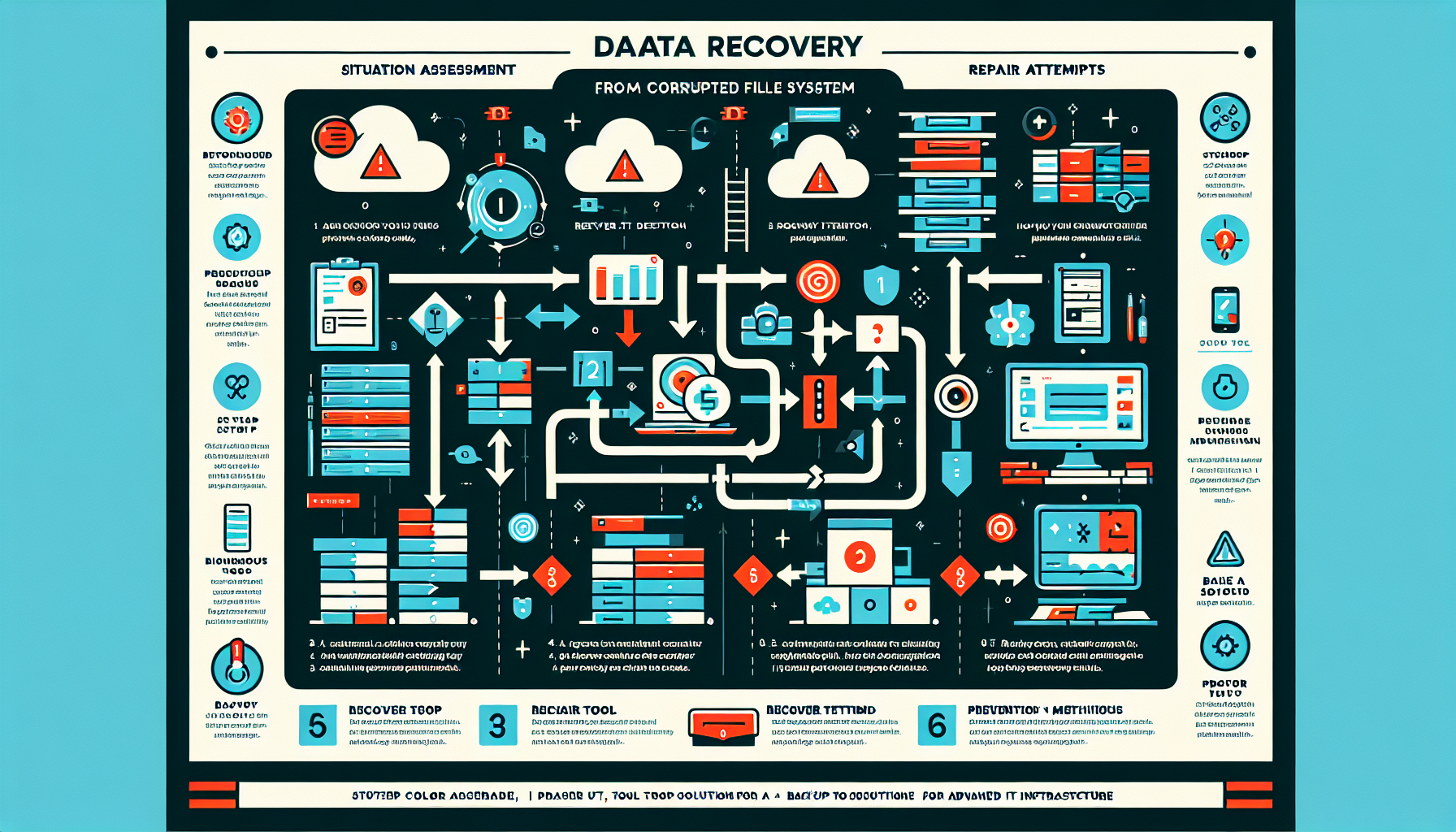
Recovering data from a corrupted file system is a delicate process that requires careful planning to avoid causing further damage. Below is a step-by-step guide to help you recover the data effectively:
Step 1: Assess the Situation
Identify the symptoms. Are files missing, unreadable, or inaccessible? Is the entire file system unmountable?
Stop writing to the disk immediately to prevent overwriting potentially recoverable data.
Create a bit-by-bit image of the corrupted disk using tools like dd or Clonezilla. This ensures you have a copy of the data before attempting recovery.
Step 2: Identify the File System Type
Knowing the file system type (e.g., NTFS, FAT32, ext4, XFS, ZFS) is critical for choosing the right recovery tools. Use the following commands to check the file system:
– Linux: lsblk -f or blkid
– Windows: diskpart → list volume
Step 3: Attempt File System Repair
If the corruption is minor, file system repair tools may resolve the issue without requiring full data recovery. Use the appropriate tool for your file system:
– Windows NTFS/FAT32: Run chkdsk /f /r in Command Prompt.
– Linux ext2/ext3/ext4: Use fsck (e.g., fsck /dev/sdX).
– XFS: Use xfs_repair.
– ZFS: Use zpool scrub or zpool status to check for errors.
– macOS HFS+/APFS: Use Disk Utility’s “First Aid” function.
Note: File system repair tools can sometimes cause data loss. Use them only after creating a backup of the corrupted disk.
Step 4: Use Data Recovery Tools
If the file system repair fails or risks overwriting data, use specialized data recovery tools:
– Windows:
– Commercial: EaseUS Data Recovery, Stellar Data Recovery, R-Studio
– Free: Recuva, TestDisk
– Linux:
– Command-line: testdisk, photorec, extundelete, ddrescue
– GUI Tools: R-Linux, Disk Drill
– macOS: Disk Drill, Data Rescue
– VMware/Hyper-V: For virtual machine file recovery, tools like VMFS Recovery or native VMDK/VHDX recovery tools can help.
Step 5: Recover Data from the Backup
If you have a recent backup, restore the data from there. Use your organization’s backup solution (e.g., Veeam, Commvault, NetBackup) to recover files.
Step 6: Use Professional Recovery Services
If the corruption is severe (e.g., physical damage to the disk, RAID failure), consider consulting a professional data recovery service like Ontrack, DriveSavers, or Seagate Recovery Services.
Step 7: Rebuild or Reformat the File System
After recovering your data, rebuild the file system to ensure it’s functioning properly. Use disk formatting or reinitialization tools.
Linux: mkfs (e.g., mkfs.ext4 /dev/sdX)
Windows: Disk Management or format command.
Restore data from the backup or recovered files.
Step 8: Prevent Future Corruption
Monitor storage health with SMART tools (smartctl) or vendor-specific utilities.
Implement RAID (e.g., RAID 10) for redundancy and performance.
Maintain a solid backup strategy, including incremental and full backups.
Schedule periodic file system checks.
Use an uninterruptible power supply to prevent power-related corruption.
Ali YAZICI is a Senior IT Infrastructure Manager with 15+ years of enterprise experience. While a recognized expert in datacenter architecture, multi-cloud environments, storage, and advanced data protection and Commvault automation , his current focus is on next-generation datacenter technologies, including NVIDIA GPU architecture, high-performance server virtualization, and implementing AI-driven tools. He shares his practical, hands-on experience and combination of his personal field notes and “Expert-Driven AI.” he use AI tools as an assistant to structure drafts, which he then heavily edit, fact-check, and infuse with my own practical experience, original screenshots , and “in-the-trenches” insights that only a human expert can provide.