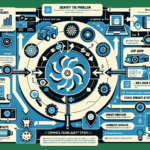
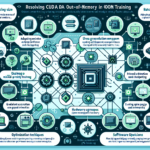
Troubleshooting CUDA errors on GPUs requires a systematic approach. Here’s a step-by-step guide:
1. Gather Information
Before diving in, collect details about the problem:
– Error Message: Note the exact CUDA error code or message (e.g., CUDA_ERROR_OUT_OF_MEMORY).
– Environment:
– GPU model (e.g., NVIDIA A100, RTX 3090).
– CUDA version (e.g., CUDA 11.8).
– Driver version (nvidia-smi will display this).
– Operating system (Windows/Linux).
– Application or workload that triggered the error.
– Logs: Check application logs, system logs, and GPU logs.
2. Check Hardware Health
Verify the physical health of the GPU:
– Temperature: Use nvidia-smi to check if the GPU is overheating (consistently above 85°C under heavy load).
– Utilization: Check GPU utilization and memory usage using nvidia-smi. Ensure the GPU isn’t overloaded.
– Power Supply: Ensure the GPU is receiving adequate power (verify PSU wattage and cable connections).
– Dust/Physical Damage: Inspect the GPU for dust buildup or visible signs of damage.
3. Validate Software Stack
Ensure the software environment is correctly configured:
– CUDA Toolkit: Confirm the installed version matches your application requirements.
– NVIDIA Drivers:
– Check driver compatibility with the CUDA version.
– Update drivers if necessary (sudo apt update && sudo apt install nvidia-driver-<version> on Linux).
– Application Dependencies: Ensure all libraries (e.g., cuDNN, TensorRT, or PyTorch/TensorFlow) are compatible with the CUDA version.
4. Debug Error Codes
CUDA error codes can help pinpoint the issue. Below are some common errors and fixes:
| Error Code | Cause | Solution |
|—————————-|——————————————-|————————————————————————-|
| CUDA_ERROR_OUT_OF_MEMORY | Insufficient GPU memory | Reduce batch size, optimize memory usage, or upgrade GPU. |
| CUDA_ERROR_INVALID_DEVICE | GPU not found or incompatible device | Ensure the application targets the correct GPU and verify compatibility. |
| CUDA_ERROR_ILLEGAL_ADDRESS | Invalid memory access in the kernel | Debug kernel code with tools like cuda-memcheck. |
| CUDA_ERROR_LAUNCH_FAILURE | Kernel launch failed | Check kernel code, thread/block configuration, and shared memory limits. |
5. Use Debugging Tools
NVIDIA provides several tools to assist in debugging:
– cuda-memcheck: Detect memory access errors and leaks in your CUDA code.
– NVIDIA Nsight: A debugging and profiling tool for CUDA applications.
– nvprof / NVIDIA Visual Profiler: Analyze performance bottlenecks in CUDA workloads.
6. Test with Sample Applications
Run NVIDIA-provided CUDA sample applications to verify basic functionality:
– Navigate to the CUDA samples directory (e.g., /usr/local/cuda/samples) and compile the examples.
– Run basic tests like deviceQuery or bandwidthTest to confirm GPU and driver are working properly.
7. Isolate the Problem
Run on a Different GPU: If you have multiple GPUs, test the application on another GPU to rule out hardware failure.
Test on a Different Machine: Run the workload on another machine with similar hardware/software to isolate environmental issues.
8. Monitor GPU Resources
Use tools to monitor GPU activity:
– nvidia-smi: Check real-time utilization, memory consumption, and active processes.
– Profiling Tools: Use Nsight Systems or Nsight Compute for deeper analysis.
9. Update Firmware
Outdated GPU firmware can cause issues:
– Check NVIDIA’s website for updates to your GPU’s VBIOS or firmware.
– Update firmware following the vendor’s instructions.
10. Check Kernel Code (If Applicable)
If you’re dealing with custom CUDA kernels:
– Verify kernel configurations (e.g., thread/block dimensions).
– Use debugging tools to inspect memory access patterns.
– Optimize kernel performance by profiling execution.
11. Consult Documentation
Refer to the official NVIDIA CUDA documentation for details on error codes, driver compatibility, and best practices:
– CUDA Toolkit Documentation: https://docs.nvidia.com/cuda/
– NVIDIA Developer Forums: https://forums.developer.nvidia.com/
12. Reinstall or Roll Back
If the error persists:
– Reinstall CUDA Toolkit and Drivers: Uninstall the current versions and reinstall from scratch.
– Roll Back: If the issue started after an update, roll back to a previous version of the driver or CUDA toolkit.
13. Seek Support
If all else fails:
– Open a ticket with NVIDIA Support.
– Provide error logs, hardware/software details, and steps to reproduce the issue.
Ali YAZICI is a Senior IT Infrastructure Manager with 15+ years of enterprise experience. While a recognized expert in datacenter architecture, multi-cloud environments, storage, and advanced data protection and Commvault automation , his current focus is on next-generation datacenter technologies, including NVIDIA GPU architecture, high-performance server virtualization, and implementing AI-driven tools. He shares his practical, hands-on experience and combination of his personal field notes and “Expert-Driven AI.” he use AI tools as an assistant to structure drafts, which he then heavily edit, fact-check, and infuse with my own practical experience, original screenshots , and “in-the-trenches” insights that only a human expert can provide.