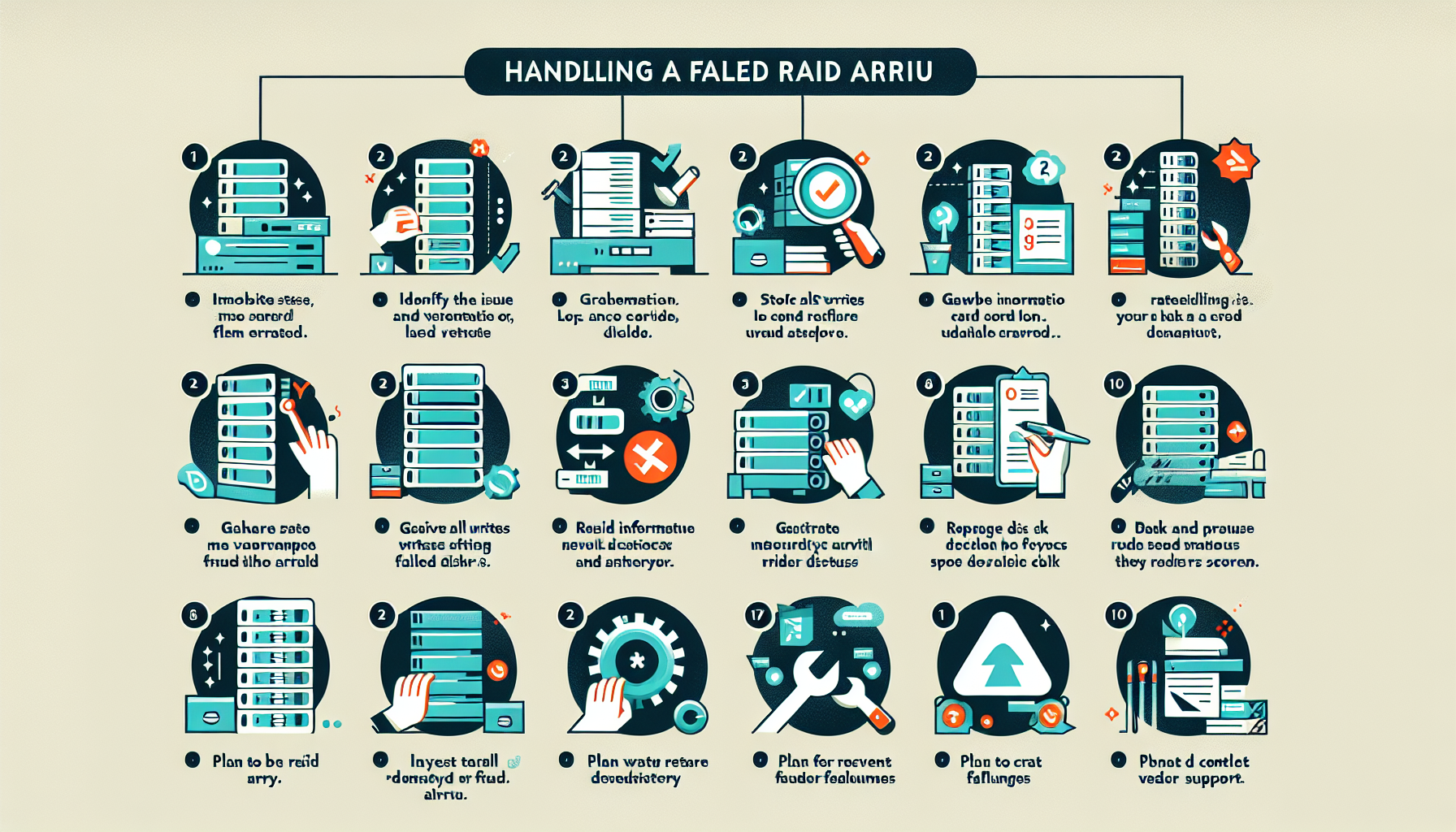
When a RAID array fails, you need a clear sequence: stop writes, diagnose, replace, rebuild, verify, then figure out why it happened so it doesn’t recur. Here’s the process.
1. Identify the Issue
Check system logs, monitoring alerts, and RAID controller notifications to determine the nature of the failure.
Confirm the RAID level (RAID 0, 1, 5, 6, 10, etc.) — the recovery steps depend on it.
Assess impact: has redundancy been lost, is performance degraded, or is data unavailable?
2. Stop All Writes and Access
If the array is degraded or failed, halt all writes immediately to prevent further corruption.
Put the affected system in maintenance mode (if applicable) so users and applications can’t touch the array.
3. Gather Information
Identify which disks have failed using the RAID controller or software utility.
Review controller logs or storage-management notifications for the root cause.
Run SMART diagnostics or vendor-specific tools to assess the health of the failed disks.
4. Replace Failed Disk(s)
If the controller or backplane supports hot-swapping, replace the failed disk(s) while the system runs.
Otherwise, power down, swap the disk(s), and power back up.
Match the original disk type, capacity, and speed to maintain array integrity.
5. Rebuild the Array
Start the rebuild from the RAID controller or management software. The process varies by level:
RAID 1 (mirroring): data copies to the new disk.
RAID 5/6 (parity): parity is recalculated and written to the new disk(s).
RAID 10: the mirror leg rebuilds from its surviving counterpart.
Monitor the rebuild closely — it can take hours or longer depending on array size and disk speed.
6. Validate Data Integrity
Once the rebuild finishes, verify that all data is intact and accessible.
Run filesystem checks and confirm critical applications function correctly.
7. Investigate the Cause
Test the failed disks to confirm the failure mode; verify the replacement disks are healthy.
Check for RAID controller firmware updates or hardware defects.
Validate environmental factors: cooling, power stability, vibration.
8. Backup and Preventative Measures
Take a fresh backup of the restored data. RAID is not a backup — never rely on it alone.
Enable proactive monitoring to catch disk health issues before they cause failures.
Schedule regular disk and RAID health checks to spot early degradation.
Replace aging disks preemptively based on manufacturer guidelines or SMART trends.
9. Plan for Future Failures
If your current RAID level doesn’t meet resilience requirements, consider RAID 10 or replication across arrays or sites.
Update disaster-recovery plans to account for RAID array failures.
10. Contact Vendor Support (if necessary)
If the controller or array won’t recover, engage the vendor. They may have advanced recovery tools or procedures.
Critical Notes
RAID 0: A single disk failure means probable total data loss. Restore from backup.
RAID 5/6: Multiple simultaneous disk failures can make the array unrecoverable. Engage professional data recovery if needed.
Do not reinitialize: Avoid reinitializing the array unless you’re certain all data is backed up or recovery is impossible.
Ali YAZICI is a Senior IT Infrastructure Manager with 15+ years of enterprise experience. While a recognized expert in datacenter architecture, multi-cloud environments, storage, and advanced data protection and Commvault automation , his current focus is on next-generation datacenter technologies, including NVIDIA GPU architecture, high-performance server virtualization, and implementing AI-driven tools. He shares his practical, hands-on experience and combination of his personal field notes and “Expert-Driven AI.” he use AI tools as an assistant to structure drafts, which he then heavily edit, fact-check, and infuse with my own practical experience, original screenshots , and “in-the-trenches” insights that only a human expert can provide.