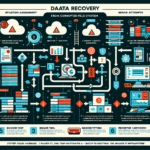
A bare-metal restore recovers a server from scratch after hardware failure, data corruption, or a similar catastrophe. Here’s how to do it:
Preparation Before Disaster
Have these in place before you need them:
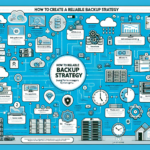
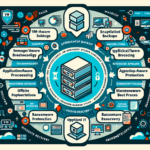
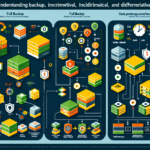
Regular backups: Implement a strategy (full, differential, incremental). Use enterprise tools (Veeam, Commvault, Veritas NetBackup, Acronis). Store copies on-premises, in cloud, and offsite.
Documented configuration: Record hardware specs, IP addresses, installed software, firewall rules. Save critical config files (/etc on Linux, registry and config files on Windows).
Bootable recovery media: Create USB or ISO media with recovery tools and OS installers. Test it regularly.
Test restores: Run periodic restore drills in a lab to verify backup integrity.
Drivers and firmware: Keep the exact driver versions for RAID controllers, NICs, GPUs, etc., and the firmware revisions your servers require.
Steps for Bare-Metal Restore
Step 1: Confirm the Hardware
Verify the replacement hardware matches the original (RAID controller, disk layout) or is compatible with your backup.
If virtualizing, ensure the hypervisor host is ready.
Step 2: Boot Into Recovery Mode
Boot from the recovery media (USB, ISO, PXE). Set BIOS/UEFI to boot from it.
Configure the RAID controller before proceeding.
Step 3: Identify Backup Source
Locate the backup: local disk, SAN/NAS, offsite/cloud, or tape.
Ensure the recovery tool has network access for remote repositories.
Step 4: Partition and Format Disks
Partition and format disks to match the original layout (primary partitions, LVM, RAID arrays).
Step 5: Restore the Backup
For block-level/image backups, select the image and restore to disk.
For file-level backups, restore the OS first, then applications and data.
Step 6: Install Missing Drivers
After OS restore, install any missing drivers (RAID, NIC, GPU for AI workloads).
Verify hardware functionality.
Step 7: Verify System Configuration
Check network settings (IP, DNS, gateway).
Check storage mounts (SAN/NAS, iSCSI).
Check application and service dependencies (databases, middleware, web servers).
Step 8: Test System Functionality
Test critical applications and services.
Verify permissions, file integrity, and performance.
Step 9: Apply Updates
Apply security patches and updates released after the backup date.
Reapply any custom configurations lost during restore.
Step 10: Document and Monitor
Record the restore process and any changes made.
Add the server to monitoring (Nagios, Zabbix, Prometheus).
Additional Considerations
Disaster Recovery for Virtualized Environments
If you use virtualization (e.g., VMware, Hyper-V) or container platforms (e.g., Kubernetes), bare-metal restore may involve restoring VM snapshots or container images rather than physical hardware.
Ensure hypervisor backups and configurations are included in your disaster recovery plan.
GPU Workloads
For AI or compute-intensive workloads requiring GPU cards (e.g., NVIDIA GPUs), ensure CUDA drivers and libraries are properly restored.
Kubernetes Workloads
For Kubernetes clusters, restore etcd (or other cluster configuration storage) and redeploy workloads using manifests or Helm charts.
Verify persistent volumes and storage classes are correctly reattached.
Cloud Integration
If critical servers are integrated with cloud platforms (e.g., Azure, AWS), verify connectivity and restore cloud resources as needed.
Post-Restore Validation
Perform a thorough validation of all services.
Notify stakeholders of the restoration status.
Analyze root cause and refine your disaster recovery plan if necessary.
Ali YAZICI is a Senior IT Infrastructure Manager with 15+ years of enterprise experience. While a recognized expert in datacenter architecture, multi-cloud environments, storage, and advanced data protection and Commvault automation , his current focus is on next-generation datacenter technologies, including NVIDIA GPU architecture, high-performance server virtualization, and implementing AI-driven tools. He shares his practical, hands-on experience and combination of his personal field notes and “Expert-Driven AI.” he use AI tools as an assistant to structure drafts, which he then heavily edit, fact-check, and infuse with my own practical experience, original screenshots , and “in-the-trenches” insights that only a human expert can provide.