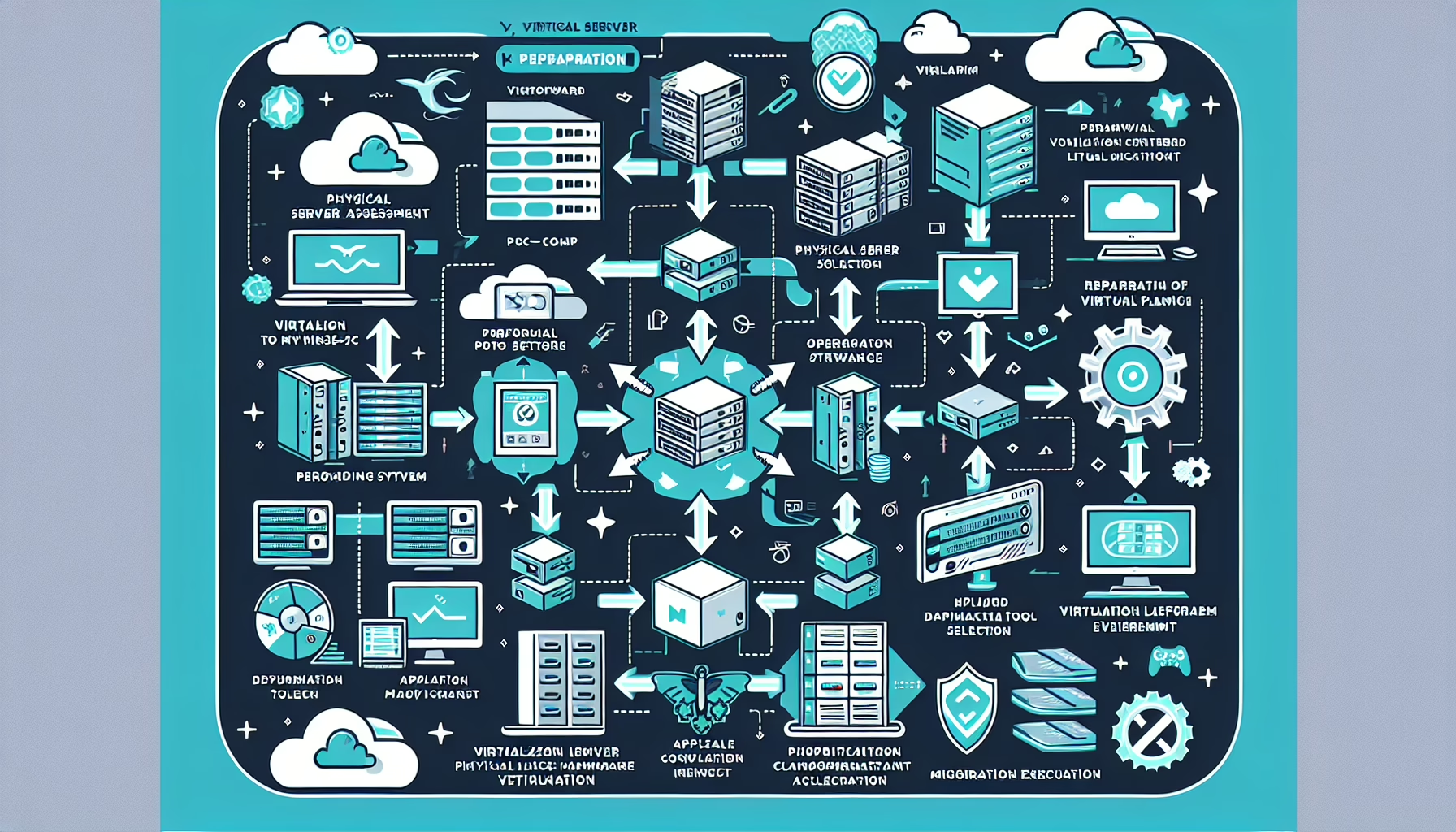
Migrating physical servers to virtual machines (P2V) is standard practice when consolidating infrastructure, improving scalability, or modernizing a data center. Here’s how to do it.
1. Assess the Physical Server Environment
Before you start, gather detailed information about each physical server:
- Hardware specifications: CPU, memory, storage, NICs
- Operating system and software: version, installed applications, drivers, dependencies
- Workloads: identify critical services and applications
- Performance metrics: CPU, memory, disk, and network utilization so the VM resources match the physical workload
2. Choose a Virtualization Platform
Pick the platform you’ll migrate to. Common options:
- VMware vSphere/ESXi
- Microsoft Hyper-V
- KVM (Kernel-based Virtual Machine)
- Proxmox VE
- Oracle VirtualBox
Verify the platform supports your OS and application requirements.
3. Prepare the Virtualization Environment
- Provision the target hypervisor: install and configure the virtualization platform.
- Check storage availability: ensure the datastore has enough capacity for the new VMs.
- Network configuration: set up virtual networks to match the physical server’s existing network requirements.
- Allocate resources: plan CPU, memory, and storage for each VM.
4. Choose a P2V Migration Tool
Select a tool that supports P2V for your platform:
- VMware vCenter Converter (for VMware environments)
- Clonezilla (for open-source/manual migrations)
- Acronis Backup & Recovery (for disk imaging and P2V migration)
- Disk2VHD (for creating VHDs for Hyper-V)
- KVM virt-v2v (for KVM environments)
5. Plan the Migration
Minimize downtime with a solid plan:
- Schedule downtime: pick a migration window that impacts business operations the least.
- Backup the physical server: take a full backup so you can recover if something goes wrong.
- Test the migration process: run a test on a non-critical server or in a lab environment.
6. Perform the P2V Migration
- Install the migration tool on the physical server or the management system.
- Connect to the target virtualization platform using the tool.
- Configure VM settings: define the virtual machine’s specifications (CPU, memory, storage, etc.).
- Run the migration: start the conversion. The tool typically creates a virtual disk image of the physical server and deploys it as a VM.
- Monitor the migration: watch the process to ensure it completes successfully.
7. Post-Migration Steps
After the migration finishes:
- Verify the virtual machine:
- Ensure the OS boots properly.
- Check that all services and applications run as expected.
- Install virtualization-specific tools: VMware Tools, Hyper-V Integration Services, or equivalents for better performance and management.
- Optimize VM settings: adjust CPU, memory, and disk based on the performance metrics you gathered earlier.
- Test backups: confirm your backup and disaster recovery solution works for the new VM.
8. Decommission the Physical Server
Once you’ve confirmed the VM is functioning properly:
- Archive or wipe data from the physical server.
- Remove it from production or repurpose the hardware.
Best Practices for P2V Migration
- Migrate incrementally: avoid moving all servers at once to limit risk.
- Monitor performance post-migration: verify the VM delivers the same performance as the physical server.
- Use snapshots: take a snapshot of the VM after migration for rollback if needed.
- Document the migration: keep detailed records for future reference.
Ali YAZICI is a Senior IT Infrastructure Manager with 15+ years of enterprise experience. While a recognized expert in datacenter architecture, multi-cloud environments, storage, and advanced data protection and Commvault automation , his current focus is on next-generation datacenter technologies, including NVIDIA GPU architecture, high-performance server virtualization, and implementing AI-driven tools. He shares his practical, hands-on experience and combination of his personal field notes and “Expert-Driven AI.” he use AI tools as an assistant to structure drafts, which he then heavily edit, fact-check, and infuse with my own practical experience, original screenshots , and “in-the-trenches” insights that only a human expert can provide.
If you found this content valuable, [support this ad-free work with a coffee]. Connect with him on [LinkedIn].
Related Posts: