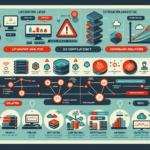
Troubleshooting hypervisor issues requires a systematic approach. Start here:
1. Identify the Problem
- Gather detailed information:
- Performance issue, VM won’t start, network problems, storage latency, or something else?
- Which hypervisor (VMware ESXi, Hyper-V, KVM, etc.)?
- Error messages or logs that provide clues.
2. Check the Basics
- Ensure the hypervisor host is powered on and accessible.
- Verify server hardware is functioning (server logs, RAID controller status, memory, CPU).
- Confirm the host has proper network connectivity and IP addressing.
- Confirm storage devices (SAN, NAS, local disks) are reachable with no hardware failures.
3. Review Hypervisor Logs
- Access logs to identify errors or warnings:
- VMware ESXi:
/var/log/directory (e.g.,vmkernel.log,vpxa.log). - Microsoft Hyper-V: Event Viewer (System and Application logs).
- KVM:
/var/log/libvirt/or journal logs.
- VMware ESXi:
- Look for patterns or recurring issues.
4. Check Resource Utilization
- Examine CPU, memory, disk I/O, and network usage on the hypervisor. Overcommitted resources cause degraded performance or VM crashes.
- Use monitoring tools: VMware vSphere Performance Charts, Hyper-V Performance Monitor, or Prometheus/Grafana for KVM.
5. Verify Virtual Machine (VM) Configuration
- Ensure VM settings are correct (allocated resources, compatibility with hypervisor version).
- Check if snapshots are consuming excessive disk space.
- Confirm virtual hardware compatibility (virtual NIC, disk controllers).
6. Validate Network Settings
- Check virtual switch configurations:
- Are VLANs correctly configured?
- Are port groups and uplinks working properly?
- Verify DNS and routing settings on the hypervisor and virtual machines.
7. Storage Troubleshooting
- Check if datastore or storage is running out of space.
- Verify storage paths are redundant and operational (iSCSI, NFS, or FC connections).
- Look for disk latency or high IOPS indicating bottlenecks.
8. Patch and Update
- Ensure the hypervisor runs the latest stable version with all necessary patches.
- Check compatibility between hypervisor and guest OS versions.
- Update firmware for host hardware components (RAID controllers, NICs).
9. Test and Isolate
- Create a test VM to verify host functionality.
- Migrate VMs to another host (if possible) to isolate the problem.
- If the issue occurs during VM migration, check vMotion settings (VMware) or Live Migration settings (Hyper-V).
10. Restart Services
- Restart key hypervisor services: vCenter Agent (
vpxa) in VMware or Virtual Machine Management Service in Hyper-V. - Reboot the hypervisor host only as a last resort and during a maintenance window.
11. Verify HA and Fault Tolerance
- If HA is configured, ensure it functions properly to handle host failures.
- Verify Fault Tolerance settings if enabled.
12. Engage Vendor Support
- If troubleshooting doesn’t resolve the issue, contact the hypervisor vendor (VMware, Microsoft, Red Hat).
- Provide logs, host details, and a problem description.
13. Document and Prevent
- Document the issue and resolution steps for future reference.
- Implement monitoring and alerting (VMware vRealize Operations, Nagios, Zabbix) to catch problems proactively.
Tools to Use
- VMware: ESXi CLI commands, vSphere Client, vCenter.
- Hyper-V: PowerShell, Event Viewer, System Center Virtual Machine Manager (SCVMM).
- KVM:
virsh, Cockpit, Prometheus/Grafana. - Network: Wireshark, iperf, netstat.
- Storage: SAN/NAS management tools, I/O benchmarking tools like
fio.

Ali YAZICI is a Senior IT Infrastructure Manager with 15+ years of enterprise experience. While a recognized expert in datacenter architecture, multi-cloud environments, storage, and advanced data protection and Commvault automation , his current focus is on next-generation datacenter technologies, including NVIDIA GPU architecture, high-performance server virtualization, and implementing AI-driven tools. He shares his practical, hands-on experience and combination of his personal field notes and “Expert-Driven AI.” he use AI tools as an assistant to structure drafts, which he then heavily edit, fact-check, and infuse with my own practical experience, original screenshots , and “in-the-trenches” insights that only a human expert can provide.
If you found this content valuable, [support this ad-free work with a coffee]. Connect with him on [LinkedIn].
Related Posts: