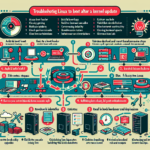
Troubleshooting a server that won’t boot is a systematic process. Start at the hardware layer and work up.
Step 1: Initial assessment
Observe and document symptoms
Is there power to the server (fans spinning, LEDs lit)?
Are there beep codes or error messages on screen?
Is the server stuck in a boot loop or frozen at a specific point?
Determine the last known good state
Was there a recent hardware or software change (firmware updates, new hardware, OS updates)?
Did the server shut down unexpectedly or suffer power loss?
Step 2: Hardware troubleshooting
Power supply
Verify the power cable is securely connected and the server is receiving power.
If available, test with a known working power supply unit (PSU).
Connections
Check all internal and external cables (SATA, power, network) for loose connections or damage.
Memory (RAM)
Remove and reseat the RAM modules.
If the server has diagnostic LEDs or error codes for memory, use them to identify faulty modules.
Test with one RAM module at a time to rule out bad sticks.
Storage devices
Disconnect all storage drives (HDDs, SSDs) and boot the server to see if it reaches the BIOS/UEFI.
If the server boots without drives, a failed drive may be causing the issue.
Peripheral devices
Disconnect all unnecessary peripherals (USB devices, additional graphics cards, RAID controllers) to isolate the problem.
CMOS/BIOS
Reset the BIOS by clearing the CMOS. This often resolves boot issues caused by misconfigured settings.
Motherboard and components
Inspect for physical damage (bulging capacitors, burns) or loose components.
If you suspect motherboard failure, test with backup hardware if available.
Step 3: BIOS/UEFI diagnostics
Access BIOS/UEFI
If the server boots to the BIOS/UEFI, check for error logs or boot settings.
Ensure boot order is correctly configured (e.g., boot from the main OS drive).
Run built-in diagnostics
Many servers (e.g., Dell PowerEdge, HP ProLiant) have built-in diagnostics tools. Run these tests to identify hardware faults.
Firmware updates
Check if the BIOS/UEFI firmware is up to date. Corrupt or outdated firmware can cause boot issues.
Step 4: Software troubleshooting
Boot media
Ensure the server can boot from a bootable USB/CD/DVD. Use a live OS (e.g., Linux or Windows recovery media) to test.
Operating system issues
If the server reaches the OS boot screen but fails to load, there may be file system corruption or missing boot files. Use recovery tools to repair the OS.
Logs
Check system logs for clues (e.g., /var/log in Linux or Event Viewer in Windows).
Step 5: RAID or storage configuration
RAID controller
Verify the RAID controller status. A degraded or failed RAID array can prevent boot.
Rebuild the array if necessary, but ensure you have backups before performing any RAID changes.
Disk health
Use manufacturer tools (e.g., SMART diagnostics or vendor utilities) to verify the health of the drives.
Step 6: Advanced troubleshooting
Virtualization issues
If the server hosts virtual machines, ensure the hypervisor (e.g., VMware ESXi, Hyper-V) is intact and the boot partition isn’t corrupted.
GPU servers
If the server uses GPU cards for compute workloads, ensure the drivers and BIOS settings for GPUs are properly configured.
Remove GPUs to test if they’re causing boot interference.
Kubernetes nodes
For Kubernetes servers, verify that the system can at least boot into the OS.
Step 7: Backup and restore
Restore from backup
If the server’s boot partition or OS is irreparable, restore the system from a recent backup.
Disaster recovery plan
If the server is mission-critical, activate your disaster recovery plan and failover to a secondary server.
Step 8: Engage vendor support
Hardware warranty
If the issue persists and hardware failure is suspected, contact the server vendor (e.g., Dell, HP, Lenovo) for support or replacement.
Software vendor
If the issue is related to virtualization, Kubernetes, or other specialized software, reach out to the appropriate vendor for assistance.
Ali YAZICI is a Senior IT Infrastructure Manager with 15+ years of enterprise experience. While a recognized expert in datacenter architecture, multi-cloud environments, storage, and advanced data protection and Commvault automation , his current focus is on next-generation datacenter technologies, including NVIDIA GPU architecture, high-performance server virtualization, and implementing AI-driven tools. He shares his practical, hands-on experience and combination of his personal field notes and “Expert-Driven AI.” he use AI tools as an assistant to structure drafts, which he then heavily edit, fact-check, and infuse with my own practical experience, original screenshots , and “in-the-trenches” insights that only a human expert can provide.