When a Windows Server hits a bug check (blue screen) and the stop code points to a driver — DRIVER_IRQL_NOT_LESS_OR_EQUAL, PAGE_FAULT_IN_NONPAGED_AREA, SYSTEM_THREAD_EXCEPTION_NOT_HANDLED — start here.
1. Capture the stop code and driver name
Write down the stop code and any driver file shown on the screen (e.g., nvlddmkm.sys, ndis.sys, storahci.sys).
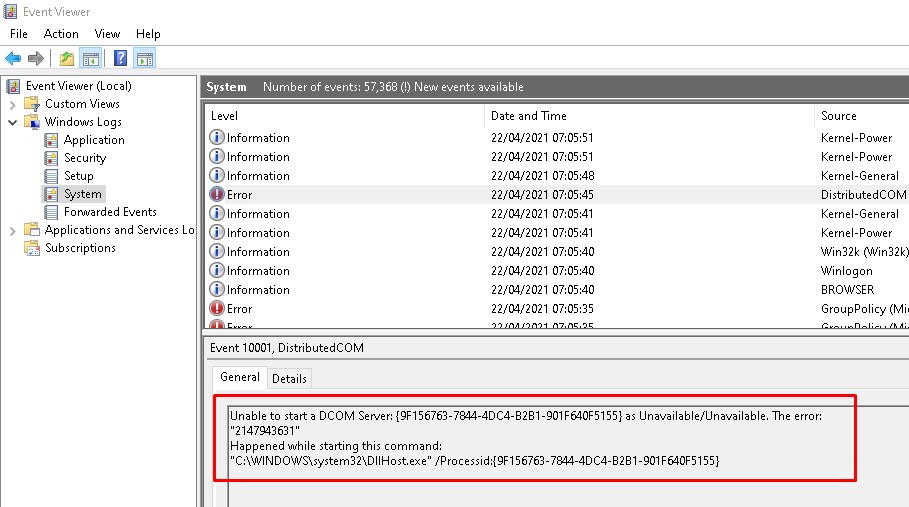
If the server reboots before you can read it, check Event Viewer → System for event ID 1001 (BugCheck) or 41 (Kernel-Power).
2. Boot into Safe Mode or the Recovery Environment
On Server 2016 and later, F8/Shift+F8 at boot is unreliable. Instead:
From the sign-in screen: hold Shift while clicking Restart → Troubleshoot → Advanced options → Startup Settings → Restart → press 4 for Safe Mode.
If you can’t reach the sign-in screen, force three consecutive hard reboots (power off/on) to trigger Automatic Repair, then follow the same path.
Safe Mode loads only Microsoft-signed drivers, letting you determine whether a third-party driver is the culprit.
3. Check Event Viewer for correlated errors
Run eventvwr.msc and filter the System log for Critical and Error levels in the hour before each crash.
Look for entries from Disk, Ntfs, the specific driver name, or BugCheck.
4. Analyze the memory dump
Dump files live in two places:
Minidumps: C:\Windows\Minidump\*.dmp (default, smaller, usually enough)
Kernel/full dump: C:\Windows\MEMORY.DMP (overwritten each crash; configure via SystemPropertiesAdvanced.exe → Startup and Recovery → Settings)
Open the dump in WinDbg (from the Windows SDK) or BlueScreenView (NirSoft). Run !analyze -v in WinDbg; the MODULE_NAME and IMAGE_NAME fields usually name the offending driver.
5. Update or roll back the identified driver
Update: Download the latest driver from the hardware vendor’s site — not Windows Update — matching your exact Server build (e.g., 2022 Datacenter 21H2).
Roll back: If the crash started after a recent update, open devmgmt.msc, right-click the device → Properties → Driver → Roll Back Driver.
Uninstall cleanly: For display/storage/network drivers, use the vendor’s cleanup utility (e.g., DDU for GPUs) before reinstalling.
6. Rule out hardware
Memory: Run mdsched.exe (Windows Memory Diagnostic) on next boot, or boot MemTest86 (free edition) for at least four passes.
Disk:chkdsk /f /r on the OS volume (requires reboot). For RAID arrays, check the controller’s management utility for degraded logical drives and verify controller firmware.
Firmware/BIOS: Update motherboard/BMC, RAID/HBA, NIC, and GPU firmware to the latest vendor releases. Many “driver” crashes are actually firmware incompatibilities.
7. Apply Windows updates
Install all cumulative updates and any driver-specific hotfixes listed in the KB articles for your stop code. Run sconfig → option 6 (Download and Install Updates) on Core, or Settings → Update & Security on Desktop Experience.
8. Isolate third-party software drivers
Antivirus filter drivers, backup agents (Veeam, Commvault, etc.), and monitoring agents install kernel-mode drivers. Temporarily uninstall them — not just disable — and test stability.
9. Stress-test with Driver Verifier
Open an elevated command prompt and run verifier.
Choose Create custom settings (for code developers) → Standard settings → select Select driver names from a list → check only the suspect driver(s) (or all non-Microsoft drivers if unsure).
Reboot. Driver Verifier will stress the selected drivers; if one violates kernel rules, it will bug check with a dump that names the driver explicitly.
Warning: Do not enable Verifier on production servers without a maintenance window — it will increase crash frequency.
10. Rebuild if necessary
If the driver cannot be fixed, updated, or removed (e.g., a mandatory storage filter driver), and the server is not recoverable from backup, reinstall the OS. Restore data from known-good backups; do not clone the crashed volume.
Prevention
Pin driver versions in your deployment pipeline (MDT, SCCM, Ansible, etc.). Never let Windows Update auto-install drivers on servers.
Test every driver/firmware update in a lab that mirrors production hardware before rolling out.
Configure crash dumps to Kernel memory dump (not just minidump) on critical servers so you have full context on the first crash.
Monitor Event Viewer → System for repeated Event ID 7 (bad block), Event ID 11 (controller error), or driver load failures — they often precede a bug check by days.
Ali YAZICI is a Senior IT Infrastructure Manager with 15+ years of enterprise experience. While a recognized expert in datacenter architecture, multi-cloud environments, storage, and advanced data protection and Commvault automation , his current focus is on next-generation datacenter technologies, including NVIDIA GPU architecture, high-performance server virtualization, and implementing AI-driven tools. He shares his practical, hands-on experience and combination of his personal field notes and “Expert-Driven AI.” he use AI tools as an assistant to structure drafts, which he then heavily edit, fact-check, and infuse with my own practical experience, original screenshots , and “in-the-trenches” insights that only a human expert can provide.