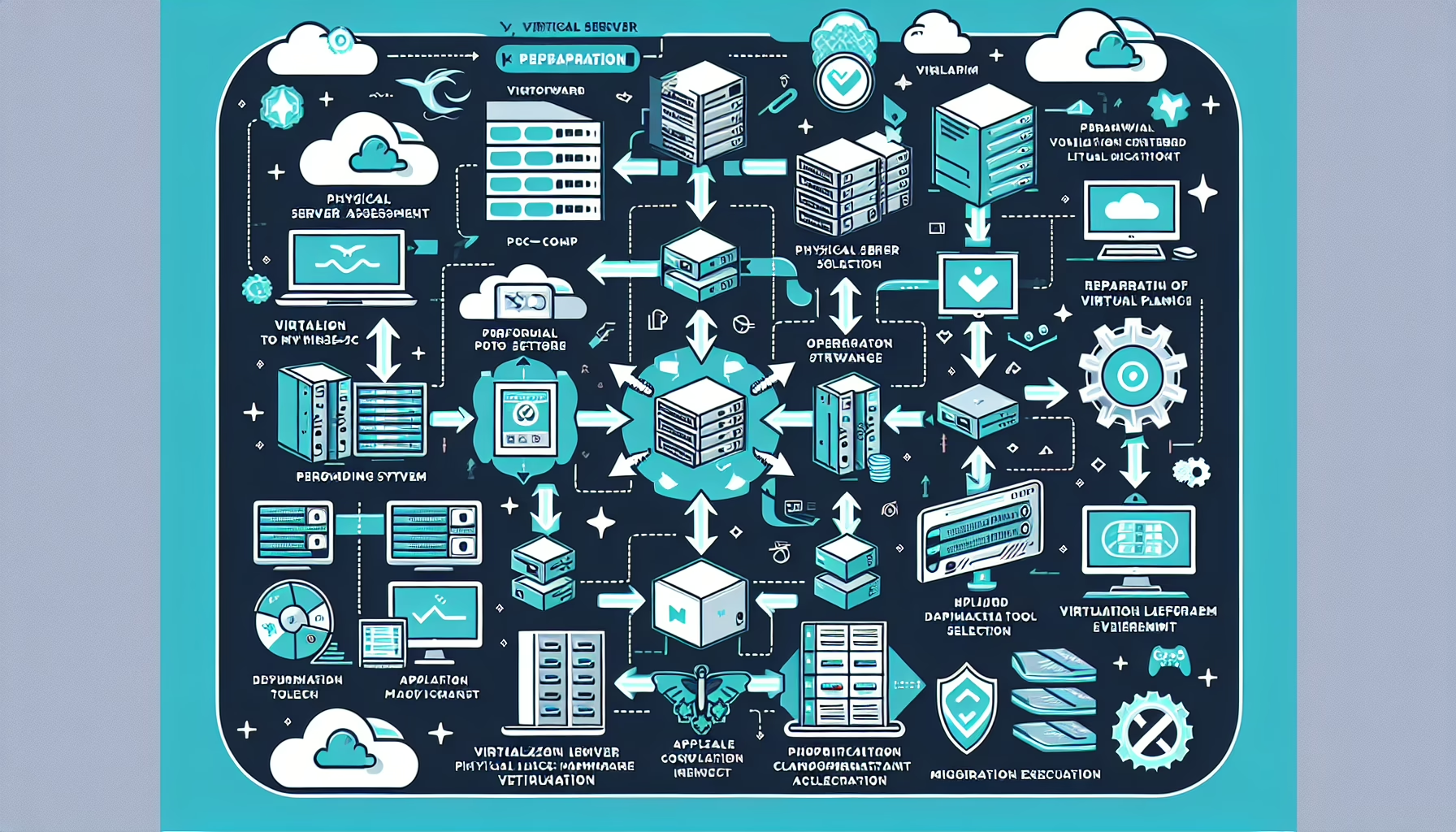
Understand the features, compatibility, and limitations of each platform (e.g., VMware ESXi, Microsoft Hyper-V, KVM, Xen).
Identify critical workloads
Categorize workloads by importance and downtime tolerance to prioritize migrations.
Check compatibility
Verify VM configurations (CPU, RAM, disk types, network adapters) are supported on the target hypervisor.
Ensure guest operating systems and applications will function properly on the target.
Back up VMs
Perform a full backup of all VMs and their data. Test the backups to confirm they are recoverable.
Plan network and storage
Ensure the target environment has appropriate storage, networking, and compute resources.
Configure VLANs, IP addresses, and firewall rules as needed.
Step 2: Prepare the Migration Tools
Use native migration tools where available
Check for vendor tools such as VMware vSphere Converter. Note: Microsoft Virtual Machine Converter (MVMC) is deprecated and no longer supported.
Consider third-party tools
Options include StarWind V2V Converter and AWS Application Migration Service (formerly CloudEndure). PlateSpin Migrate has been discontinued.
Export and import as fallback
If no tool fits, export VMs as OVF/OVA or use disk imaging (dd, qemu-img) to move raw disk files.
Step 3: Perform a Test Migration
Clone a non-critical VM
Migrate the clone to the target hypervisor to validate the process end-to-end.
Verify functionality
Confirm the VM boots, applications start, and network configuration works on the target.
Step 4: Execute the Migration
Cold migration (lower risk)
Shut down the VM on the source hypervisor.
Export the VM (OVF/OVA or disk image).
Import into the target hypervisor.
Power on and validate.
Live migration (minimize downtime)
Native live migration (vMotion, Hyper-V Live Migration) works only within the same hypervisor cluster. For cross-hypervisor moves, you need a third-party tool that replicates disks while the VM runs, then cuts over.
Ensure network and storage connectivity between environments before starting.
Convert disk formats if needed
Convert between formats (e.g., VMDK to VHDX, VMDK to QCOW2) using qemu-img or the converter tool of choice.
Confirm the VM boots, applications work, and users have access.
Check performance
Monitor CPU, memory, disk, and network in the new environment. Look for contention or misconfiguration.
Update backup configuration
Add migrated VMs to backup jobs on the target platform.
Update documentation
Record new VM configurations, IP assignments, and any changes made during migration.
Step 6: Final Cleanup
Decommission old VMs
After confirming the new VMs are stable, remove the source VMs and reclaim storage.
Optimize resources
Return freed compute and storage to the source cluster.
Additional Tips for Minimal Downtime
Schedule migrations during maintenance windows to reduce user impact.
Enable HA on the target cluster before cutting over production workloads.
Use snapshots or checkpoints on the source VM before starting, so you can roll back quickly if the migration fails. Remember: snapshots are not backups.
Ali YAZICI is a Senior IT Infrastructure Manager with 15+ years of enterprise experience. While a recognized expert in datacenter architecture, multi-cloud environments, storage, and advanced data protection and Commvault automation , his current focus is on next-generation datacenter technologies, including NVIDIA GPU architecture, high-performance server virtualization, and implementing AI-driven tools. He shares his practical, hands-on experience and combination of his personal field notes and “Expert-Driven AI.” he use AI tools as an assistant to structure drafts, which he then heavily edit, fact-check, and infuse with my own practical experience, original screenshots , and “in-the-trenches” insights that only a human expert can provide.