Troubleshooting Storage Replication Failures in Enterprise Environments
Storage replication is the backbone of disaster recovery (DR) and high availability (HA) strategies in modern enterprises. When replication fails, it’s not just a technical inconvenience—it can mean potential data loss, broken SLAs, and operational downtime. In my experience managing large-scale datacenter environments, replication issues often stem from a combination of network bottlenecks, misconfigurations, and subtle firmware bugs. This guide outlines a step-by-step, real-world approach to diagnosing and resolving storage replication failures effectively.
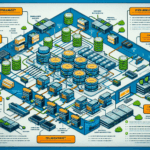
1. Understand the Replication Topology
Before diving into logs, you must have a clear mental map of your storage environment.
Pro-Tip: I keep an up-to-date diagram showing replication paths, involved nodes, network VLANs, and any intermediate switches/firewalls. This saves hours during incident response.
Key Checks:
– Is replication synchronous or asynchronous?
– What’s the source and target storage platform (vendor, model, firmware version)?
– Are there multiple replication jobs with overlapping schedules?
2. Check Network Health First
Replication traffic is highly sensitive to latency and packet loss. I’ve seen cases where a 2% packet loss on a replication VLAN completely stalled the process.
Steps:
“`bash
Test latency and packet loss
ping -c 20
Check bandwidth utilization
iperf3 -c -t 30
Verify MTU settings match on both ends
ping -M do -s 8972
“`
Common Pitfalls:
– Jumbo frames enabled on one side but not the other.
– QoS policies throttling replication traffic during peak hours.
– Firewall rules silently dropping large packets.
3. Verify Storage System Health
Replication failures are often symptoms of underlying storage issues.
Checklist:
– Disk health: Run vendor diagnostics to ensure no degraded drives.
– Controller status: Confirm both controllers are online and healthy.
– Cache state: In synchronous replication, a full or disabled write cache can stall replication.
Example (NetApp ONTAP):
“`bash
Check aggregate status
storage aggregate show
Check replication relationship
snapmirror show -fields status,last-transfer-error
“`
4. Inspect Replication Logs
Every enterprise-grade storage array maintains detailed replication logs.
What to Look For:
– Authentication failures (often caused by expired credentials or changed keys).
– Timeout errors (usually network or load-related).
– Version mismatches after firmware upgrades.
Example (Dell PowerStore): bash
svc_log -t replication
Pro-Tip: If logs show intermittent success and failure, suspect network instability or a scheduled job interfering with replication windows.
5. Validate Configuration Consistency
A common pitfall I’ve seen is mismatched replication parameters between source and target—especially after a firmware update.
Items to Compare:
– Snapshot schedules.
– Retention policies.
– Compression/deduplication settings.
– Encryption status (enabled on one side only can cause failures).
6. Test Manual Replication
Trigger a manual replication job to isolate variables.
If manual replication succeeds, the issue is likely in the scheduler, automation scripts, or maintenance window conflicts.
7. Monitor for Resource Contention
In virtualized environments, replication can fail when storage I/O competes with VM workloads.
Steps:
– Check IOPS on both arrays during replication windows.
– Move replication to off-peak hours if possible.
– On VMware, ensure replication datastore paths are not constrained by single HBA or queue depth limits.
8. Apply Vendor-Specific Fixes
Always check vendor KBs for known issues. I’ve resolved multiple replication failures by applying targeted hotfixes that addressed obscure firmware bugs.
Example:
– NetApp bug causing SnapMirror to fail after upgrading to ONTAP 9.9.1—resolved in 9.9.1P3.
– HPE 3PAR issue with RCIP causing timeouts—fixed via patch.
9. Implement Long-Term Preventive Measures
Once replication is restored, you should harden the process against future failures.
Best Practices:
– Enable proactive monitoring with alerts on latency, packet loss, and replication lag.
– Document and regularly test DR failover procedures.
– Keep firmware aligned between source and target nodes.
– Schedule periodic health checks for both storage and network components.
[Visual Aid Placeholder: Storage Replication Troubleshooting Flowchart]
Final Thoughts
In enterprise IT, replication failures can’t be treated as isolated incidents. They’re signals that something in your infrastructure is out of balance—be it networking, configuration, or hardware health. By approaching troubleshooting methodically, and by leveraging both vendor tools and hands-on diagnostics, you can restore replication quickly and prevent costly downtime.
In my experience, the key is to start with the network, validate storage health, and then drill into logs and configs—this sequence resolves over 80% of replication failures without requiring disruptive rebuilds.
Ali YAZICI is a Senior IT Infrastructure Manager with 15+ years of enterprise experience. While a recognized expert in datacenter architecture, multi-cloud environments, storage, and advanced data protection and Commvault automation , his current focus is on next-generation datacenter technologies, including NVIDIA GPU architecture, high-performance server virtualization, and implementing AI-driven tools. He shares his practical, hands-on experience and combination of his personal field notes and “Expert-Driven AI.” he use AI tools as an assistant to structure drafts, which he then heavily edit, fact-check, and infuse with my own practical experience, original screenshots , and “in-the-trenches” insights that only a human expert can provide.