Troubleshooting Network Connectivity Issues: A Step-by-Step Guide from an Enterprise IT Perspective
Network connectivity issues are a constant challenge in enterprise environments. In my experience managing large-scale datacenter networks and hybrid cloud infrastructures, the key to resolving these problems quickly lies in a structured approach—moving from physical layer checks to application-level diagnostics while leveraging the right tools and logs.
1. Start with Physical Layer Verification (Layer 1)
Why: Many outages are caused by simple cabling issues, failed transceivers, or incorrect port configurations.
Steps:
1. Check Cables & Ports: Ensure cables are securely connected and not damaged. Use a cable tester if available.
2. Verify Link Lights: On switches and NICs, link/activity LEDs should be steady or blinking (depending on activity).
3. Replace Suspect Hardware: Swap out cables, SFPs, or NICs to rule out faulty components.
Pro-tip: In high-density datacenters, label every cable and port. I once resolved a multi-hour outage in minutes because our labeling allowed us to trace the exact patch panel port instantly.
2. Validate IP Addressing & Subnet Configuration (Layer 3)
Why: Misconfigured IPs, subnet masks, or gateways are common culprits.
Steps:
“`bash
Check IP configuration (Linux)
ip addr show
Check IP configuration (Windows)
ipconfig /all
Test gateway reachability
ping
“`
Pro-tip: In mixed IPv4/IPv6 environments, ensure both stacks are properly configured. I’ve seen IPv6 autoconfiguration mask IPv4 gateway misconfigurations during failovers.
3. Test Local DNS Resolution
Why: DNS failures can masquerade as network connectivity issues.
Steps:
“`bash
Test DNS lookup
nslookup example.com
Compare with direct IP access
ping 93.184.216.34 # example.com’s IP
“`
If DNS works locally but not remotely, check /etc/resolv.conf (Linux) or DNS server settings in Windows network adapter properties.
4. Check Routing & Firewall Rules
Why: Incorrect routing tables or firewall ACLs can block connectivity.
Steps:
“`bash
Show routing table (Linux)
ip route show
Show routing table (Windows)
route print
Test traceroute
traceroute example.com # Linux/macOS
tracert example.com # Windows
“`
Pro-tip: In enterprise environments, always confirm that security appliances (firewalls, IDS/IPS) haven’t pushed a blocking rule during policy updates. I’ve caught sudden outages caused by automated firewall policy syncs that unintentionally blocked critical subnets.
5. Validate Switch & VLAN Configuration
Why: Incorrect VLAN assignments or trunk misconfigurations can isolate hosts.
Steps:
– Check switch port VLAN settings.
– Verify trunk ports have the correct allowed VLANs.
– Ensure the host NIC is tagged/untagged correctly for its VLAN.
Real-world example: In a VMware vSphere cluster, a misconfigured distributed switch trunk allowed only the management VLAN, cutting VM network access. Fixing the trunk port VLAN list restored service instantly.
6. Inspect Network Interface Statistics
Why: Errors, drops, and overruns point to physical or driver issues.
Steps:
“`bash
Linux NIC stats
ethtool -S eth0
Windows NIC stats
netstat -e
“`
Look for high CRC errors or dropped packets.
7. Use Packet Capture for Deep Analysis
Why: If basic checks fail, packet captures reveal protocol-level issues.
Steps:
“`bash
Capture traffic on Linux
tcpdump -i eth0 host
Capture traffic on Windows
Wireshark or Microsoft Network Monitor
“`
Pro-tip: Filter captures to specific IPs or ports to avoid drowning in data. Once, I traced intermittent application failures to asymmetric routing by comparing packet captures from two endpoints.
8. Check Application-Level Connectivity
Why: Sometimes the network is fine, but the application layer is failing.
Steps:
– Use curl or wget to test HTTP/S endpoints.
– Test database connectivity with native clients (mysql, psql).
– Check logs for connection timeout patterns.
9. Monitor & Log Everything
In enterprise networks, proactive monitoring prevents repeat incidents. Tools like Zabbix, Prometheus + Grafana, or SolarWinds can alert on:
– Interface down events
– High error rates
– Latency spikes
– DNS failures
10. Escalation & Documentation
If all else fails:
– Escalate with detailed logs, traceroutes, and capture files.
– Document the troubleshooting steps taken to speed future resolutions.
Final Pro-tip:
In hybrid cloud setups, always check both on-prem and cloud-side network security groups, routing tables, and NAT gateways. I’ve resolved countless “network” issues by correcting mismatched AWS VPC route tables or Azure NSG rules.
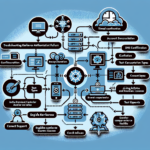
Visual Aid Placeholder: [Diagram: Structured Network Troubleshooting Flow from Physical Layer to Application Layer]
By following this systematic approach, you’ll dramatically reduce resolution time, avoid common misdiagnoses, and maintain service availability in complex enterprise environments.
Ali YAZICI is a Senior IT Infrastructure Manager with 15+ years of enterprise experience. While a recognized expert in datacenter architecture, multi-cloud environments, storage, and advanced data protection and Commvault automation , his current focus is on next-generation datacenter technologies, including NVIDIA GPU architecture, high-performance server virtualization, and implementing AI-driven tools. He shares his practical, hands-on experience and combination of his personal field notes and “Expert-Driven AI.” he use AI tools as an assistant to structure drafts, which he then heavily edit, fact-check, and infuse with my own practical experience, original screenshots , and “in-the-trenches” insights that only a human expert can provide.